From RFP to Interactive HTML Prototypes

Fleet Sync

In response to the RFP, the scenario was designed and wireframed in Figma while working as a UX consultant at a multinational IT firm.


We showcased one key use case focused on helping delivery drivers identify the most efficient route. The screens were later recreated in Claude to demonstrate the design-to-development workflow.

Client

Honda RFP

Date

Jan 2026

Industry

Automobile

Scope of work

Vibe Coding

App Design

RFP
Use Case

Smart Route Planning for Delivery Drivers

The driver, part of a logistics fleet, starts his day at the depot. He reviews the day's assigned delivery and pick up items. He picks the optimized best route suggested by the application and kick starts his work day.
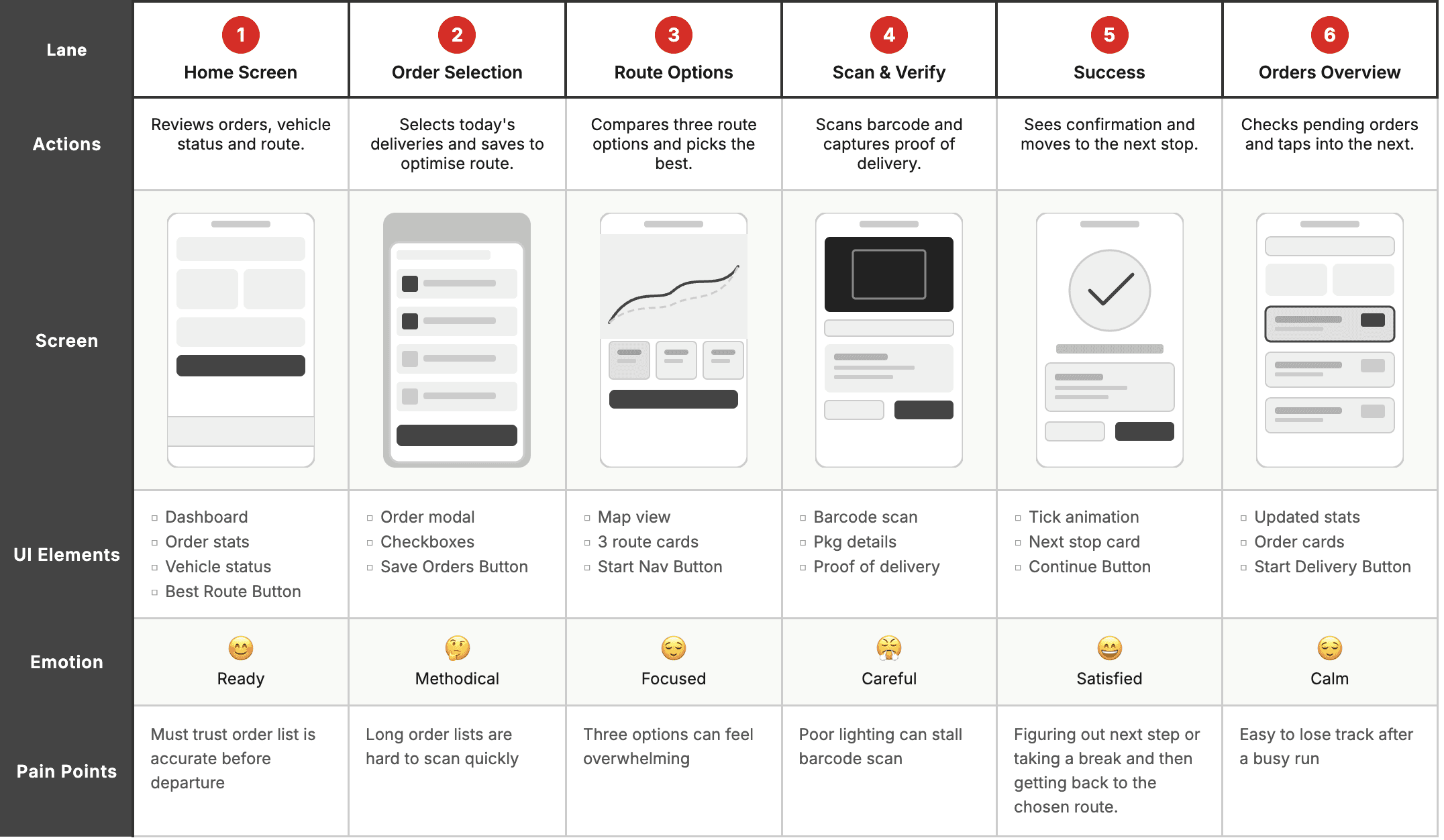
01 · Home Screen

Driver lands on the dashboard to view today's orders and vehicle status.​​

  • Scroll up/down for order overview.

  • Tap "Show Best Route" to open route options (loading microinteraction).

02 · Order Selection

Driver selects the orders to include in the delivery route.​

  • Select orders using checkboxes.

  • Tap "Save Orders" to trigger route optimization.

03 · Route options

The system suggests  three optimized routes based on selected deliveries.

  • Toggle between three route options.

  • Each route displays a unique map for comparison.

04 · Scan & Verify

Driver scans the package barcode and confirms delivery details.

  • Animated banner confirms successful scan.

  • Tap “Take Photo” or “Signature” to open captured files.

05 · Success Message

The system confirms successful delivery and shows next stop details.​

  • A pulsating "Order Completed" icon animates.

  • The buttons display different states (hover, press) as you interact.

06 · Route options

Driver reviews remaining deliveries and starts the next order.

  • Tapping an order expands its details with call-to-actions.

  • Each order card shows a status tag (e.g., pending or completed).

01 · Home Screen

Driver lands on the dashboard to view today's orders and vehicle status.​​

  • Scroll up/down for order overview.

  • Tap "Show Best Route" to open route options (loading microinteraction).

02 · Order Selection

Driver selects the orders to include in the delivery route.​

  • Select orders using checkboxes.

  • Tap "Save Orders" to trigger route optimization.

03 · Route options

The system suggests  three optimized routes based on selected deliveries.

  • Toggle between three route options.

  • Each route displays a unique map for comparison.

03 · Route options

The system suggests  three optimized routes based on selected deliveries.

  • Toggle between three route options.

  • Each route displays a unique map for comparison.

04 · Scan & Verify

Driver scans the package barcode and confirms delivery details.

  • Animated banner confirms successful scan.

  • Tap “Take Photo” or “Signature” to open captured files.

04 · Scan & Verify

Driver scans the package barcode and confirms delivery details.

  • Animated banner confirms successful scan.

  • Tap “Take Photo” or “Signature” to open captured files.

05 · Success Message

The system confirms successful delivery and shows next stop details.​

  • A pulsating "Order Completed" icon animates.

  • The buttons display different states (hover, press) as you interact.

06 · Orders Overview

Driver reviews remaining deliveries and starts the next order.

  • Tapping an order expands its details with call-to-actions.

  • Each order card shows a status tag (e.g., pending or completed).